Start here: install and open the sheet
Copy the complete CharacterEquipmentKit folder into your project's Plugins directory. For a source-only installation, build with the supported Unreal C++ toolchain, enable Character & Equipment Kit, then restart the editor.
Use a stock Unreal Engine 5.8 Third Person project for the included Manny/Quinn armor examples. Their skeleton assets come from /Game/Characters/Mannequins. Other character bodies need compatible visual bindings.
Play as a local player. Press C or click the floating character launcher. Configure defaults under Project Settings > Plugins > Character & Equipment Kit. Auto-start creates one equipment component per local controller; an existing component keeps its own settings.
To find the editable examples, enable Show Plugin Content in the Content Drawer and open CharacterEquipmentKit > CharacterEquipmentKit > Examples. Clear asset-type filters if the folder appears empty.
The four shipped examples are BP_CEK_BuyerIntegration, WBP_CEK_BuyerPortrait, BP_CEK_BuyerDrop and BP_CEK_BuyerPickup. Duplicate or derive from them in your own game folder before customization.
Choose who owns equipment
Standalone: leave Own Equipment State enabled. A successful equip or unequip commits CEK state. Handle rejection without granting or removing inventory.
Integrated: disable Own Equipment State when your inventory or server owns equipment. RequestForwarded means pending authority, never a successful transfer. Validate once in your authority, then confirm the accepted display change.
CEK supplies the equipment sheet, preview, local loadout/profile persistence and equipment bonus queries. Your game supplies inventory quantities, combat rules, replication, wearable fitting and pickup collection.
The neutral pickup retains an item payload and uses an engine cube. Replace or extend it for your collection system; spawning the sample is not a completed inventory pickup.
First successful test
- Create a stock UE 5.8 Third Person project with Manny/Quinn template content. Install CEK as the only studio plugin, build if source-only, and open the template map.
- Play. Press C or click the character launcher; expect one sheet showing your possessed character.
- Open Preview Gear. Equip Cuirass, Leg Armor, Boots and Silverblade into their matching slots. Expect four skeletal armor pieces (two boots) and a separate main-hand sword on stock Quinn/Manny.
- Remove the items and confirm their visuals disappear. Reopen Play and check that window preferences persist without duplicate launchers/components.
- To connect your own gameplay, use Set Character Profile and stat setters. In provider-owned mode, handle equip/unequip requests in your authoritative system, then call Set Equipped Slot or Clear Equipped Slot after approval. CEK supplies no inventory transfer, combat or replication implementation.
Input ownership
With Manage Input Mode enabled, opening captures cursor/click/hover flags plus the viewport mouse capture/lock policy, enables UI cursor interaction, and selects Game and UI. Closing restores only state captured by that specific open. Use Game Only On Close is enabled by default and explicitly hands focus back to the game viewport, then restores the viewport capture/lock policy so plug-and-play third-person controls resume without requiring a clearing click.
Disable Use Game Only On Close when another host must restore a custom, UI Only, or Game and UI mode. Unreal has no reliable shipping getter for the prior mode, so with this option disabled the kit does not guess one. With Manage Input Mode disabled, opening and closing are total input no-ops; the close option is ignored and the host owns every transition.
The base plugin enables Keep Mouse Cursor Visible by default while its standalone launcher is active so the launcher is immediately clickable. This policy shows the cursor, enables click/hover events, and uses Game and UI input; it does not install camera bindings or the standalone demo project's right-mouse camera policy. The buyer host remains authoritative for camera controls. Disable Keep Mouse Cursor Visible when the host requires hidden-cursor capture for normal mouse-look, or disable/suppress the standalone launcher when a bundle or host UI owns access. CEK records the prior cursor, click, hover, capture, and lock state and restores that host policy when launcher ownership ends.
Presentation parity
New components start with 64 px equipment positions, 22% black back glass, 46% translucent-black slot fill, an opaque 2 px black edge-only perimeter, and the supplied BIS character backdrop at 75% opacity. The shared border controls drive both every equipment slot perimeter and the outer character-window frame without tinting the inset fill. Seven positions run down each side: Head/Neck/Shoulders/Back/Chest/Wrists/Hands on the left and Waist/Legs/Feet/Ring 1/Ring 2/Trinket 1/Trinket 2 on the right. Both Rings and both Trinkets are therefore always grouped on the right. Only Main, Ranged, and Off Hand sit below the character preview. The compact right-edge tab expands character stats in the main window. The Black Iron Spine settings gear opens a separate settings surface immediately to the right, so settings never replace the stats. It exposes window scale, backdrop art toggle and opacity, fill and border controls with live readouts, the 48–72 px slot range, the built-in-stat toggles, movement lock, centering, preview gear, and Reset Appearance. The matched BIS close control uses the same target, padding, and interaction states. Slider changes preview continuously and commits automatically when released; toggles, resets, and completed moves save immediately. Replace Resources/UI/BIS_CEK_Character_Backdrop_v1.png with another same-purpose PNG to ship customer art without changing Slate code.
Create your own item and component child
In your game Content folder, create a CEKEquipmentItemAsset. Assign a permanent Item ID, Display Name, Allowed Slots, Required Level, Icon and Stat Modifiers. Pick IDs that remain stable across saves.
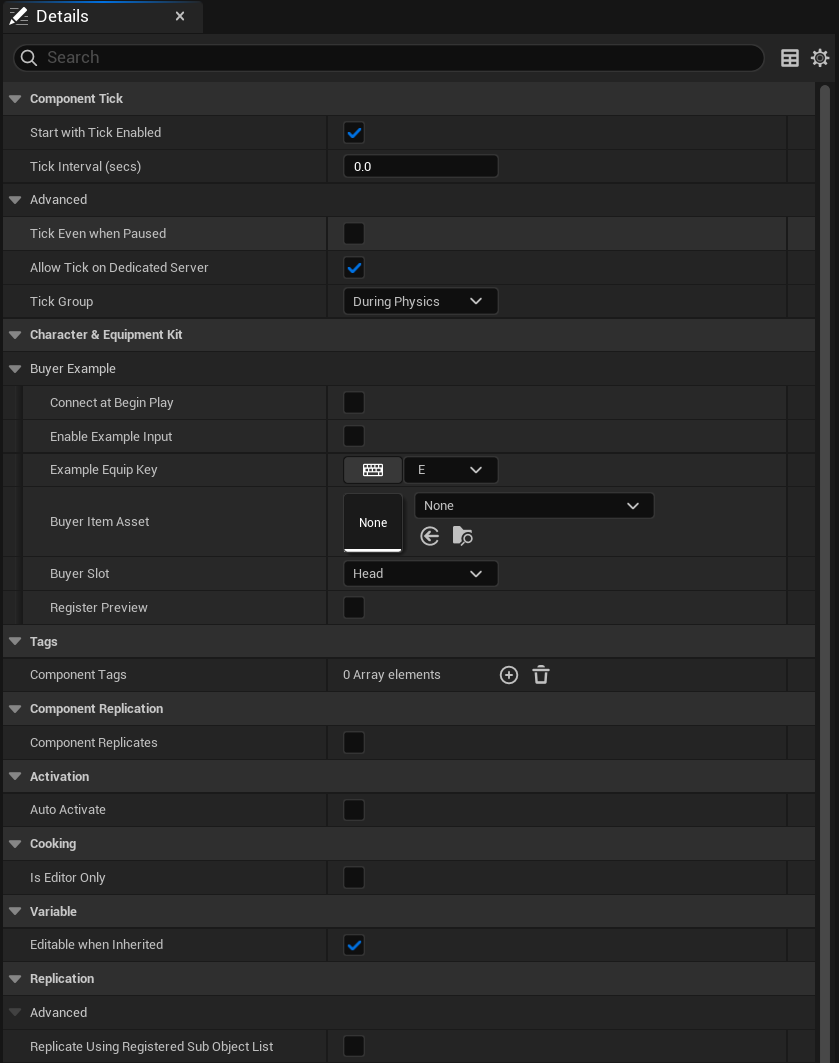
Create a child of BP_CEK_BuyerIntegration in your game folder. Assign your new item to Buyer Item Asset and choose a compatible Buyer Slot. Compile and save both assets.
BP_MyEquipment and DA_OwnHelmet are names used by a separate validation project. They are not shipped assets and will not appear in a standalone installation. Use your own names and values.
Add the component to your local PlayerController or pawn. Use Connect At Begin Play only when possession is ready, or explicitly call Initialize Buyer From Owner after possession. Bind your own input to Execute Buyer Input.
Optional Example Input uses the configured Example Equip Key (E by default). Keep it disabled if your host already owns input. The supplied screenshots show example settings, not a requirement to leave every field at its captured value.
Update, save and recover
Before updating, back up your project, existing plugin folder, customized examples and local save files. Close the editor before replacing plugin files. Keep buyer changes in your game folder.
Install the complete 1.1 plugin folder and rebuild a source installation. Reopen your project, compile your child Blueprints, and verify your input, authority callbacks and visual bindings.
Save Buyer and Reload Buyer use the connected component's selected save slot and user index. Save after a committed change. If persistence fails, report it without repeating equip, unequip or drop.
Resupply transient built-in stat values after reload and reconcile your authoritative inventory separately. To roll back, restore the backed-up plugin and matching project/save state; rebuild with the matching engine.
Keep referenced item definitions and custom visual bindings available to your packaged build. Test your actual packaged game and target hardware before distribution.
Blueprints: Connect your local player and own equipment
Folder: Show Plugin Content → CharacterEquipmentKit → CharacterEquipmentKit → Examples
Choose your player and input settings
BP_CEK_BuyerIntegration / ClassDefaults
Click to enlarge. The full-resolution Director capture is preserved.
- Add the saved component to your own local PlayerController or pawn Blueprint. Set Connect At Begin Play only when possession is ready; otherwise call Initialize Buyer From Owner after possession.
- Create a CEKEquipmentItemAsset in your game. Give it a permanent Item ID, name, Allowed Slots, Required Level, your Icon and Stat Modifiers. This definition has no physical mesh field.
- Assign Buyer Item Asset and Buyer Slot. Enable Example Input only for the optional E-key test, or call Execute Buyer Input from your own input action. Compile and Save.
Compile, save and check: Play with a possessed local pawn. A missing controller/asset rejects setup or equip; no plugin C++ edits are required.
Reuse the local equipment component
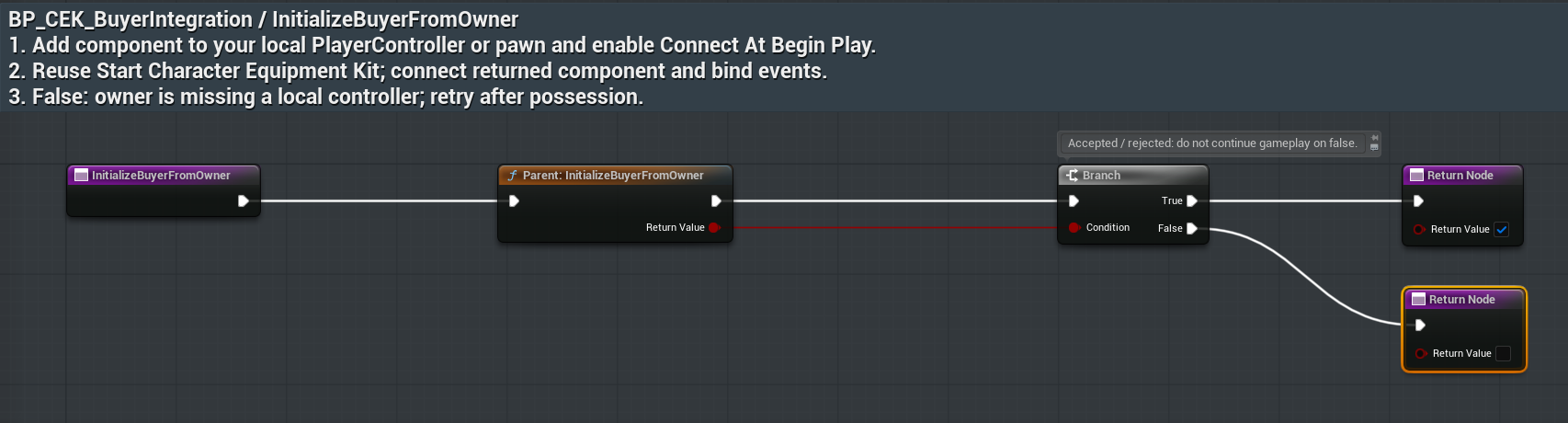
BP_CEK_BuyerIntegration / InitializeBuyerFromOwner
Click to enlarge. The full-resolution Director capture is preserved.
- The entry calls the example setup for this component owner. It accepts a local PlayerController or a pawn with a local controller.
- Start Character Equipment Kit reuses the existing CEK component. Connect Buyer binds only this example’s listeners; it does not choose your equipment authority.
- Keep the Return Value branch. False means missing possession/controller or a different existing connection that must be disconnected first. Repeating the same connection is safe.
Compile, save and check: Connected Equipment refers to the same local-player component used by the native sheet. Existing input/save policy stays with that component.
Supply a real buyer definition
BP_CEK_BuyerIntegration / EquipBuyerAsset

Click to enlarge. The full-resolution Director capture is preserved.
- Pass your Data Asset into Item Asset and the intended equipment position into Slot. Keep both data wires connected to the example call.
- Connect Return Value to Switch on CEKEquipResult in your input/HUD. Success means CEK-owned state committed; RequestForwarded means your authority still must decide.
- For InvalidItem, IncompatibleSlot, LevelTooLow, SlotOccupied, NoCompatibleSlot or ConflictingEquipment, show appropriate feedback and preserve your gameplay state.
Compile, save and check: Your stable item ID appears in Get Equipped Slot after a successful CEK-owned equip. A supplied icon/stat row does not create a wearable mesh.
Connect the returned component once
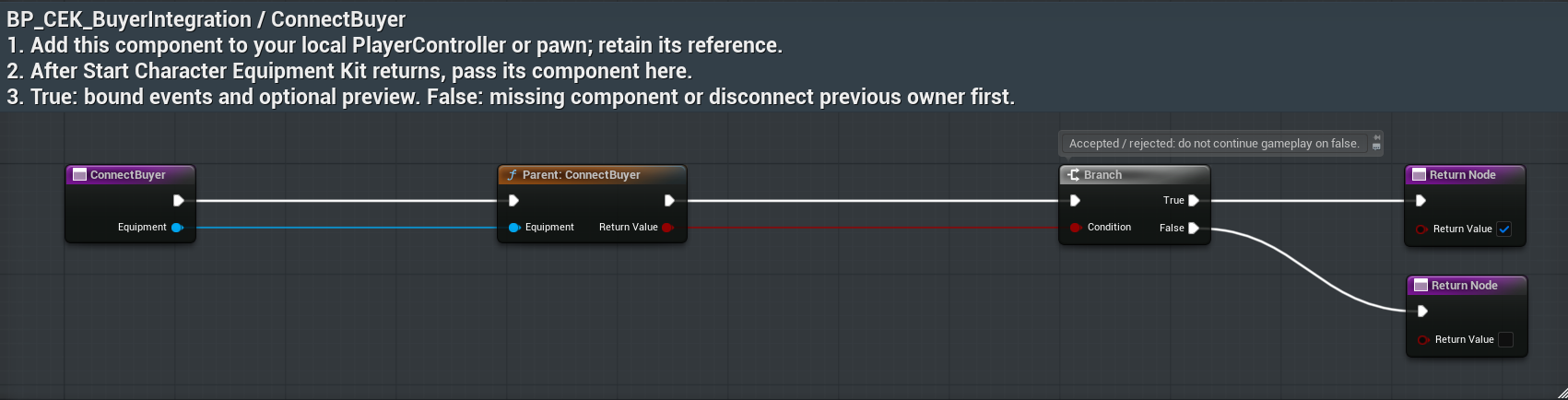
BP_CEK_BuyerIntegration / ConnectBuyer
Click to enlarge. The full-resolution Director capture is preserved.
- Supply the local CEK component in Equipment; retain this integration component.
- Keep the returned bool; another connection requires targeted Disconnect Buyer first.
- Set Register Preview only when this integration owns UI capture; otherwise leave it false.
Compile, save and check: Own subscriptions are unique; invalid setup rejects without replacing another owner.
Connect your own input action
BP_CEK_BuyerIntegration / ExecuteBuyerInput

Click to enlarge. The full-resolution Director capture is preserved.
- Set Buyer Item Asset and Buyer Slot in editable defaults.
- Call Execute Buyer Input from your own action/button, or enable the optional E-key teaching input.
- Switch the enum result: Success committed locally; RequestForwarded dispatched; rejection preserves state.
Compile, save and check: Your buyer content is supplied through editable data; no hard-coded sample ID is required.
Blueprints: Connect your own equipment authority and stat output
Folder: Show Plugin Content → CharacterEquipmentKit → CharacterEquipmentKit → Examples
Receive a request without granting twice
BP_CEK_BuyerIntegration / BuyerEquipRequested

Click to enlarge. The full-resolution Director capture is preserved.
- Set Own Equipment State false on Connected Equipment when your inventory/server owns equipment. Bind through Connect Buyer once.
- This saved callback receives Slot and Item. Replace or extend the parent recording call with your game’s ownership, level, slot and capacity checks.
- On acceptance only, call Confirm Buyer Equip with the returned Slot and Item. On refusal, do not confirm. RequestForwarded is never a successful inventory transfer.
Compile, save and check: The parent stores Last Requested Item/Slot for inspection. It deliberately does not auto-accept your request.
Commit the accepted display projection
BP_CEK_BuyerIntegration / ConfirmBuyerEquip
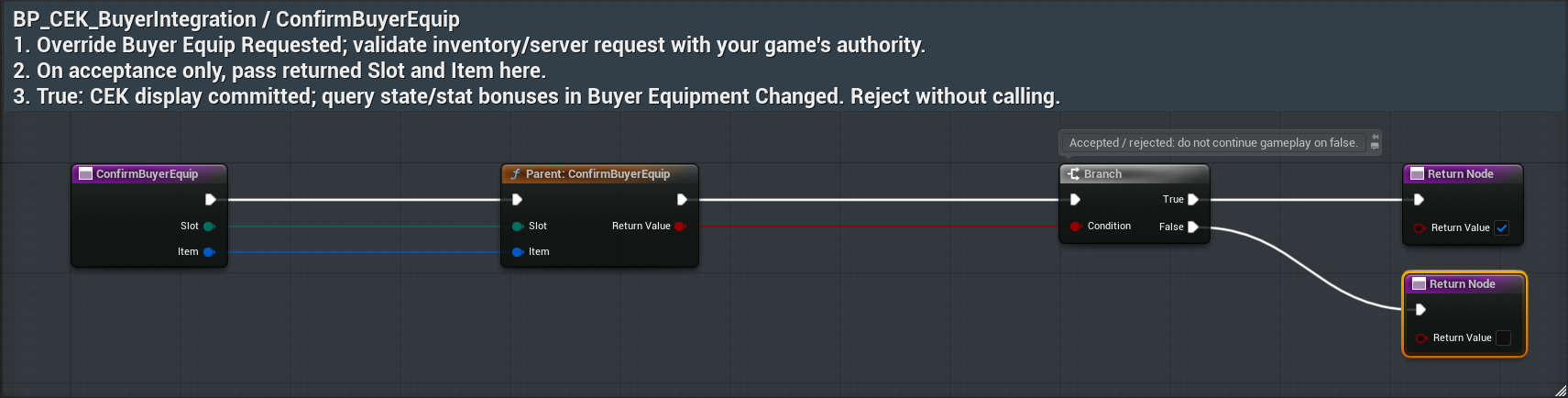
Click to enlarge. The full-resolution Director capture is preserved.
- Pass the accepted Slot and Item to this function after your gameplay transaction succeeds.
- Keep its success/failure branch. False rejects an invalid item/slot or missing connection; it is not a successful inventory debit.
- Save separately after commitment. A save failure must report persistence failure rather than repeat the transaction.
Compile, save and check: Set Equipped Slot updates CEK’s display. Your game owns inventory quantities, replication, restrictions and authoritative persistence.
Observe equipment bonuses
BP_CEK_BuyerIntegration / BuyerEquipmentChanged

Click to enlarge. The full-resolution Director capture is preserved.
- This callback runs after CEK display/stat changes. Keep the parent query call if you want Last Observed Equipment Bonuses updated.
- Read Connected Equipment with Get Equipped Slot(s), Get Equipment Stat Bonuses or Get Displayed Character Stats and refresh your HUD/adapter.
- Supply runtime built-in values with Set Built In Stat Value(s). Resupply these transient values after loading; do not repeat equip/drop from an observation event.
Compile, save and check: CEK displays supplied and configured bonuses; your game owns damage, healing, combat and the calculation of authoritative final values.
Distinguish removal from dispatch
BP_CEK_BuyerIntegration / RequestBuyerUnequip
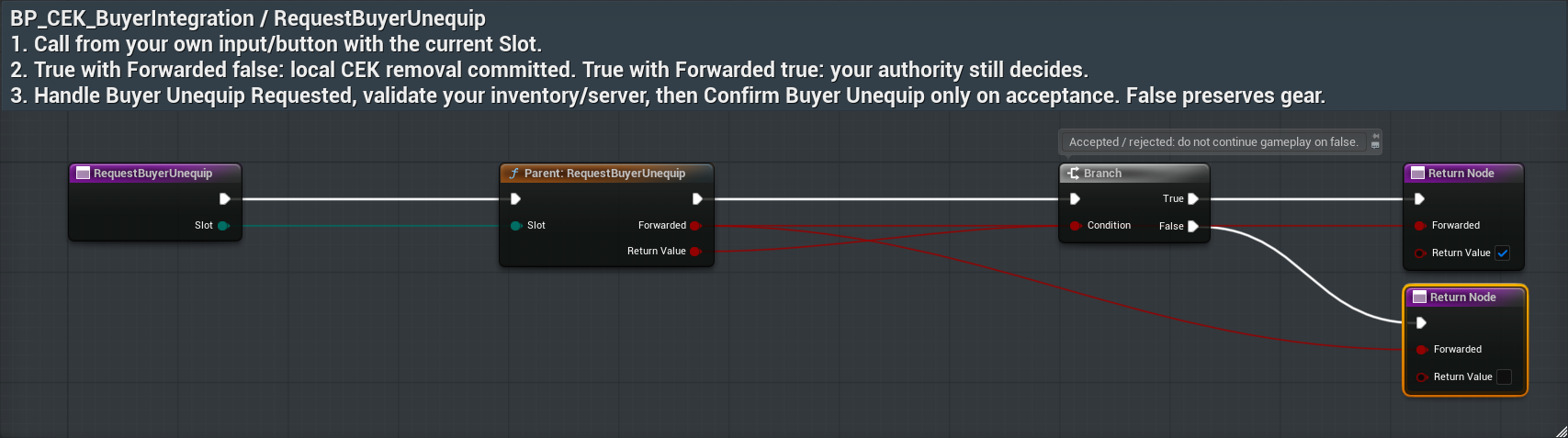
Click to enlarge. The full-resolution Director capture is preserved.
- Pass the occupied Slot from your own input.
- True with Forwarded false means local removal; true with Forwarded true means external dispatch.
- Your authority may reject or confirm; a bool alone never proves server completion.
Compile, save and check: Forwarded requests preserve equipment unless an accepted authority callback confirms.
Receive the current removal payload
BP_CEK_BuyerIntegration / BuyerUnequipRequested
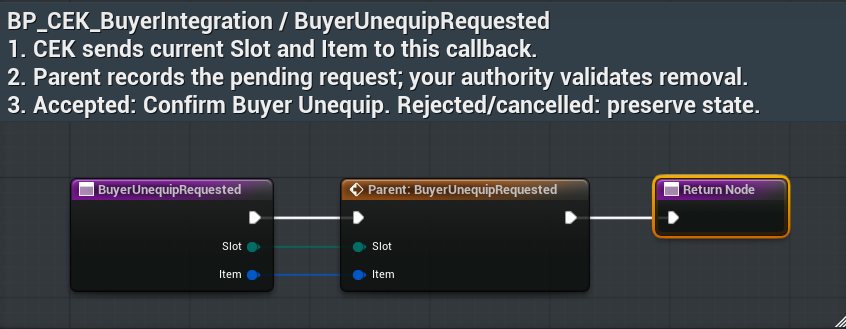
Click to enlarge. The full-resolution Director capture is preserved.
- Inspect the supplied Slot and Item; the parent records Last Requested Item/Slot.
- Validate the corresponding inventory/server transaction exactly once.
- On rejection/cancel keep state. On acceptance call Confirm Buyer Unequip; do not repeat from a change notification.
Compile, save and check: The callback is a request and deliberately does not auto-accept.
Project an accepted removal
BP_CEK_BuyerIntegration / ConfirmBuyerUnequip
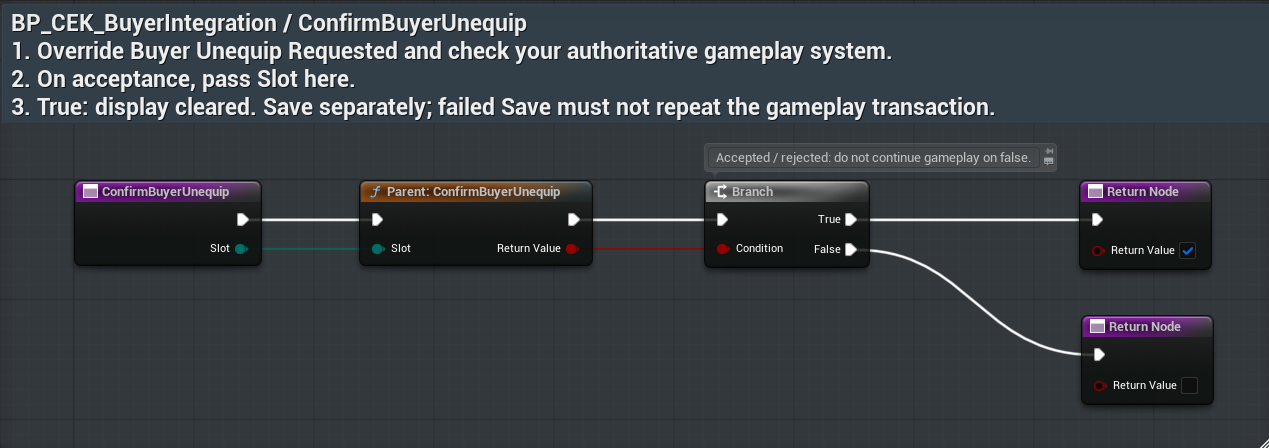
Click to enlarge. The full-resolution Director capture is preserved.
- Call only after your authority committed its removal.
- Supply the accepted Slot and handle the returned bool.
- If projection fails, reconcile CEK against authoritative state; never repeat the gameplay transaction automatically.
Compile, save and check: Accepted display removal emits current state/stat changes; persistence remains explicit.
Blueprints: Save, load and remove only your connection
Folder: Show Plugin Content → CharacterEquipmentKit → CharacterEquipmentKit → Examples
Supply name, level, portrait and custom rows
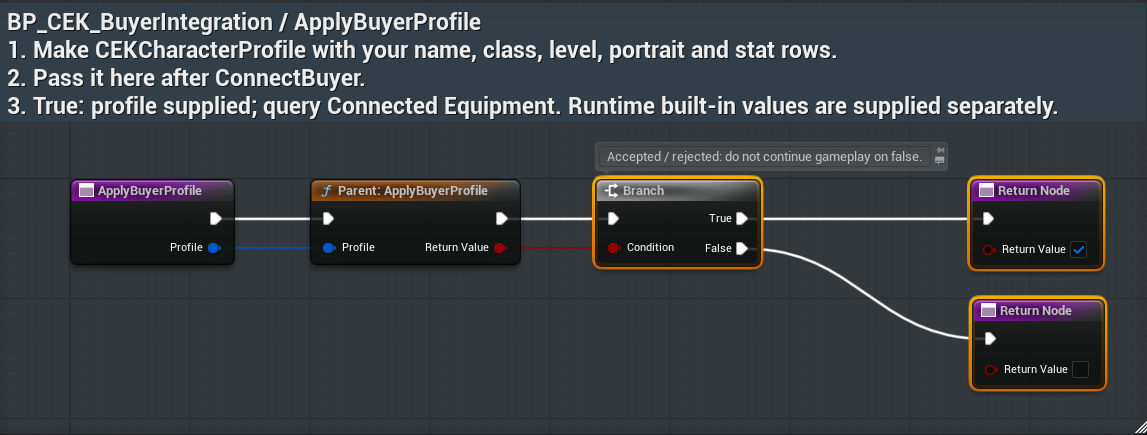
BP_CEK_BuyerIntegration / ApplyBuyerProfile
Click to enlarge. The full-resolution Director capture is preserved.
- Make CEKCharacterProfile with your Display Name, Archetype, Level, optional Portrait texture and custom Stats array.
- Connect the Profile pin to this function after Connect Buyer. A non-empty custom Stats array replaces the fallback built-in rows.
- Keep the boolean branch. False means no connected component; true means the profile was supplied. Check displayed rows in the character sheet.
Compile, save and check: Zero is a valid supplied value; bHasValue and bVisible control each custom row. Profile data is local presentation/loadout data, not combat authority.
Save once after a committed change
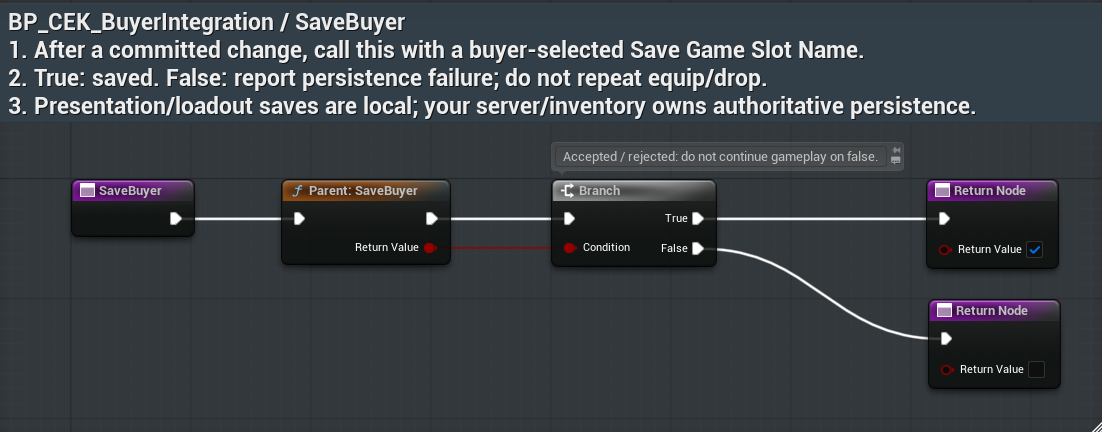
BP_CEK_BuyerIntegration / SaveBuyer
Click to enlarge. The full-resolution Director capture is preserved.
- Choose your own Save Game Slot Name and user index on Connected Equipment. Use the same values for later load.
- Call Save Buyer after commitment. Branch on Return Value: true saved; false reports persistence failure.
- Use Reload Buyer to restore the local loadout/profile. Check its boolean and then query state. Keep your authoritative inventory/server save separately.
Compile, save and check: Failed persistence must never spawn, equip or drop an item a second time. Existing stable item IDs and save schema are preserved.
Clean up and reconnect safely
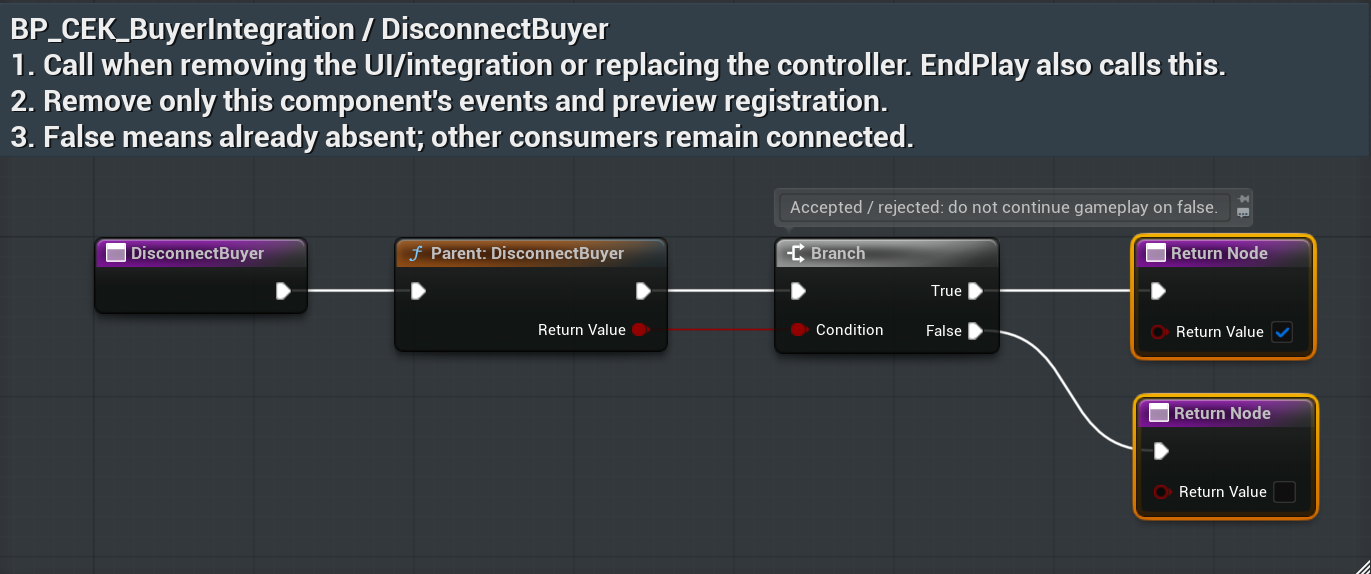
BP_CEK_BuyerIntegration / DisconnectBuyer
Click to enlarge. The full-resolution Director capture is preserved.
- Call Disconnect Buyer before replacing this example’s component connection or when removing the integration. EndPlay also performs native cleanup.
- Only this example’s event listeners and preview consumer are removed. Do not use Unbind All on the CEK delegates.
- True means a connection was present; false means already absent. Reconnect explicitly after cleanup and verify no duplicate change notifications.
Compile, save and check: Cleanup cancels future requests from this example. It does not undo a committed equipment or pickup transfer.
Load the local projection
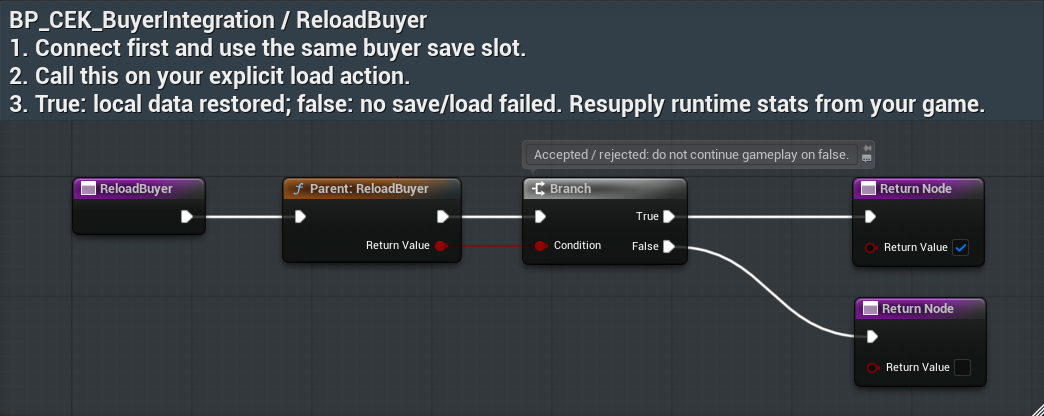
BP_CEK_BuyerIntegration / ReloadBuyer
Click to enlarge. The full-resolution Director capture is preserved.
- Use the same unique save slot and user index you saved.
- Call Reload Buyer and branch on bool; missing/corrupt data needs feedback.
- Reconcile your inventory/server save separately; CEK does not load that system.
Compile, save and check: Stable IDs, profile and presentation restore through CEK; combat authority is not inferred.
Blueprints: Display your character in a buyer-owned UMG widget
Folder: Show Plugin Content → CharacterEquipmentKit → CharacterEquipmentKit → Examples
Choose full preview or portrait-only output
WBP_CEK_BuyerPortrait / ClassDefaults
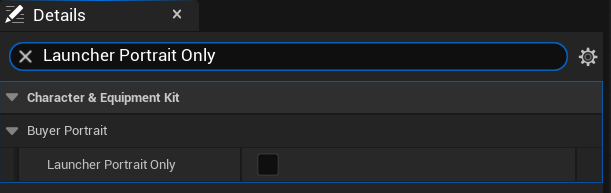
Click to enlarge. The full-resolution Director capture is preserved.
- Duplicate this widget into your game and retain the Designer Image named PortraitImage, or provide a matching named Image.
- Leave Launcher Portrait Only false for full preview with shared camera controls. True uses the independent rate-limited launcher portrait and rejects full-preview controls.
- Create Widget using your owning local player, keep its reference, and call Connect Portrait with Start Character Equipment Kit’s returned component before Add To Viewport.
Compile, save and check: A valid capture registration is not a promise that a texture exists on the same frame. The possessed local pawn must be available.
Register this exact widget
WBP_CEK_BuyerPortrait / ConnectPortrait
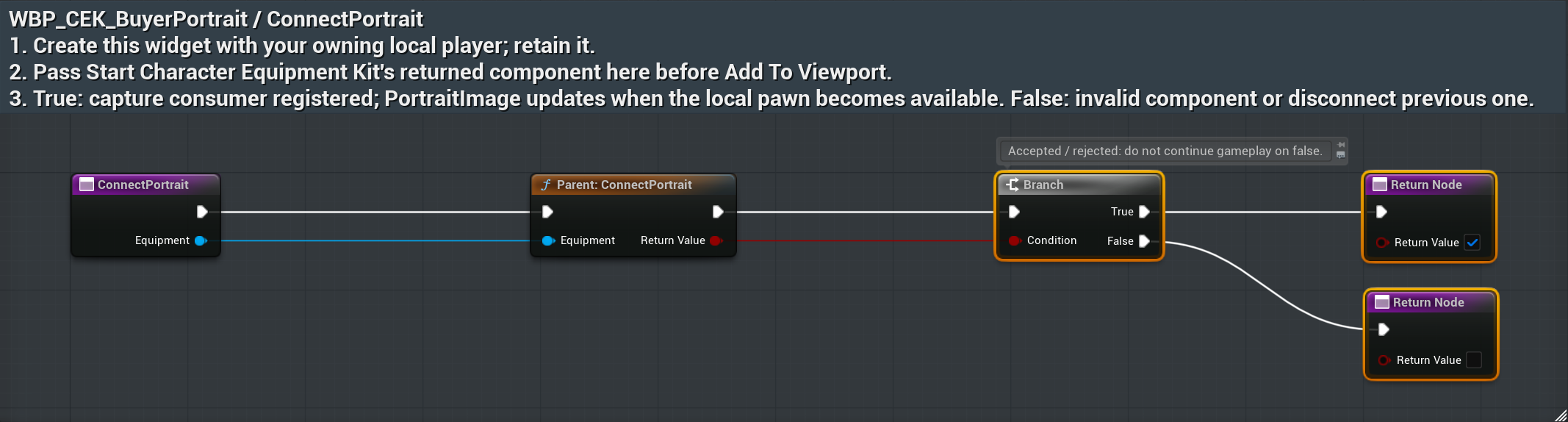
Click to enlarge. The full-resolution Director capture is preserved.
- Pass the local equipment component into Equipment. Keep its boolean success/failure branch.
- True registers this weak owner; repeated registration updates only its mode. False means missing component or a different previous connection that needs cleanup.
- The widget’s tick uses the full composite resource or portrait render target in PortraitImage. Check Has Character Preview Pawn and texture queries if the image is blank.
Compile, save and check: CEK owns capture; this widget owns its UI/input. Multiple full widgets share camera framing and the last supplied viewport aspect.
Read actual texture and ownership outputs
WBP_CEK_BuyerPortrait / ReadPortraitOutputs
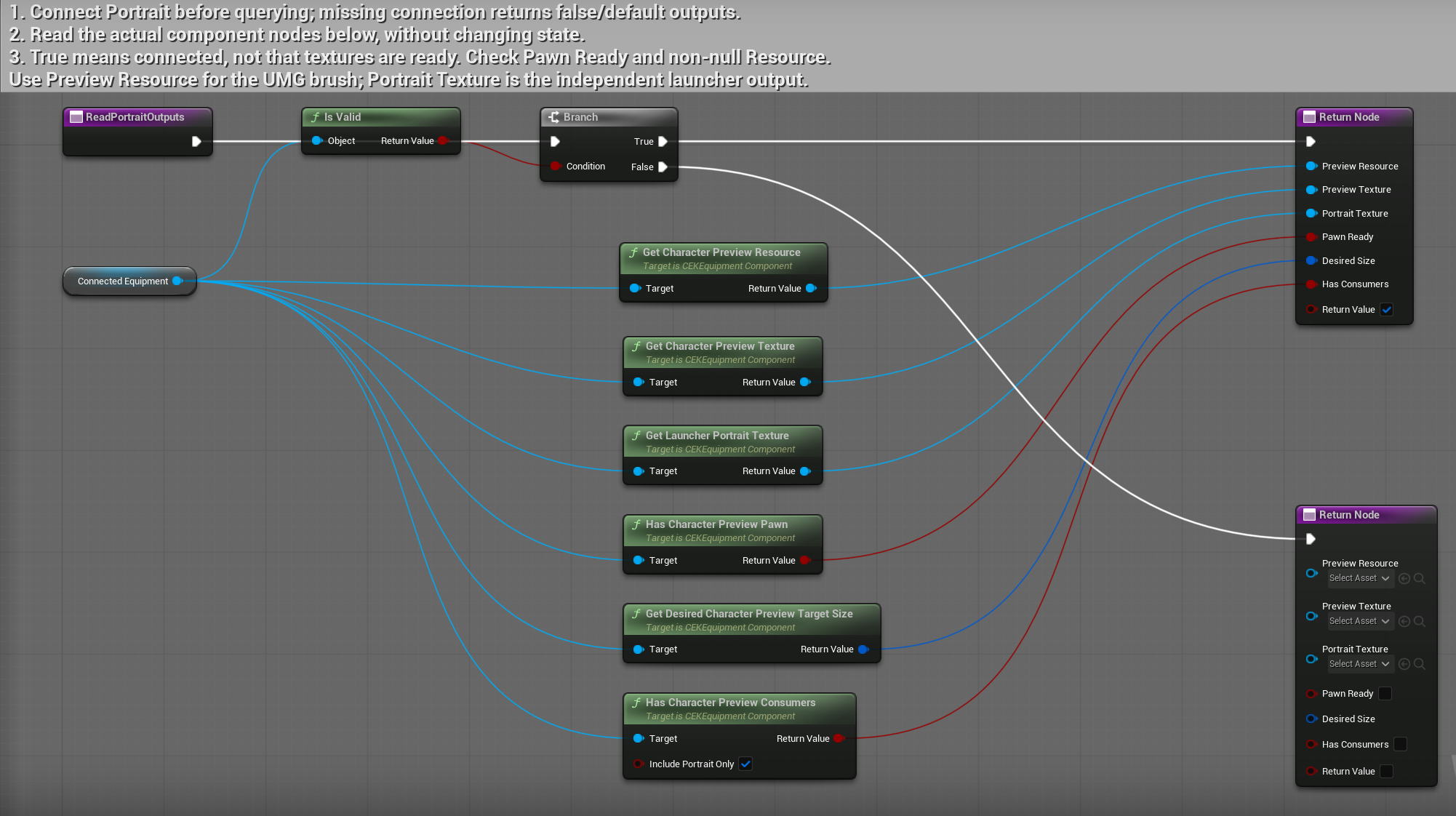
Click to enlarge. The full-resolution Director capture is preserved.
- Call after Connect Portrait; the saved graph first checks Connected Equipment validity.
- Inspect direct CEK query nodes: Preview Resource, full Preview Texture, Launcher Portrait Texture, Pawn Ready, Desired Size and Has Consumers.
- True means connected; null texture/not-ready pawn before capture is normal. Use Preview Resource for the UMG brush.
Compile, save and check: The independent launcher target and full composite resource remain distinct; no texture is invented.
Supply your actual image aspect
WBP_CEK_BuyerPortrait / ResizeBuyerPortrait
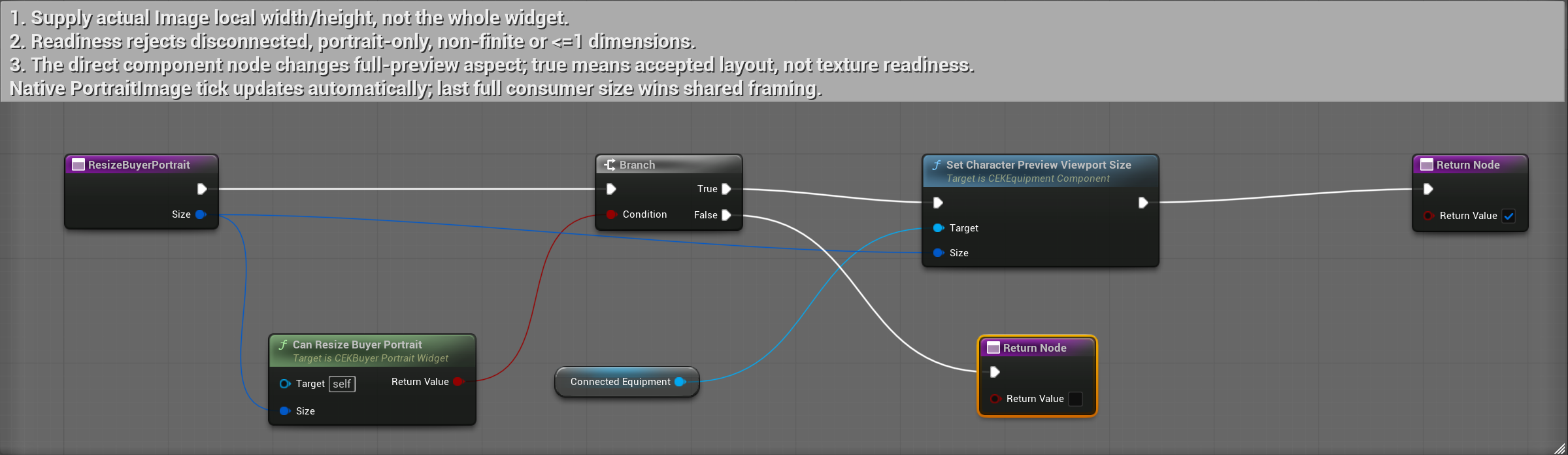
Click to enlarge. The full-resolution Director capture is preserved.
- Pass local Image width/height, not the complete widget size.
- Can Resize Buyer Portrait rejects disconnected, portrait-only, non-finite and <=1 dimensions.
- The saved direct Set Character Preview Viewport Size node accepts full-preview layout. Native PortraitImage tick already updates this automatically.
Compile, save and check: Accepted bool is layout readiness, not proof of rendered pixels. Full consumers share the last supplied aspect.
Blueprints: Control and clean up your full preview
Folder: Show Plugin Content → CharacterEquipmentKit → CharacterEquipmentKit → Examples
Inspect the full preview
WBP_CEK_BuyerPortrait / ZoomBuyerPortrait
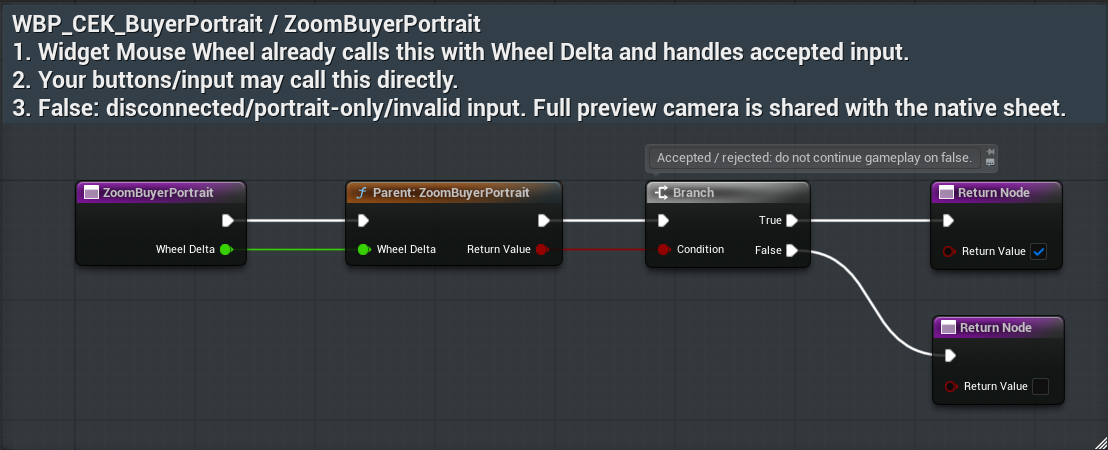
Click to enlarge. The full-resolution Director capture is preserved.
- Mouse wheel calls this function with Wheel Delta. The default widget handles accepted wheel input so it does not reach the gameplay camera.
- Left-drag orbits and middle-drag pans in the default widget. Your own handlers may call Orbit Buyer Portrait or Pan Buyer Portrait with cursor delta.
- Mouse-up and capture loss end the drag. Reset Buyer Portrait restores configured framing; explicit Save Equipment persists other camera edits.
Compile, save and check: The native sheet and full buyer widget share the preview camera. These controls do not move/recolor your possessed pawn.
Orbit without moving gameplay
WBP_CEK_BuyerPortrait / OrbitBuyerPortrait
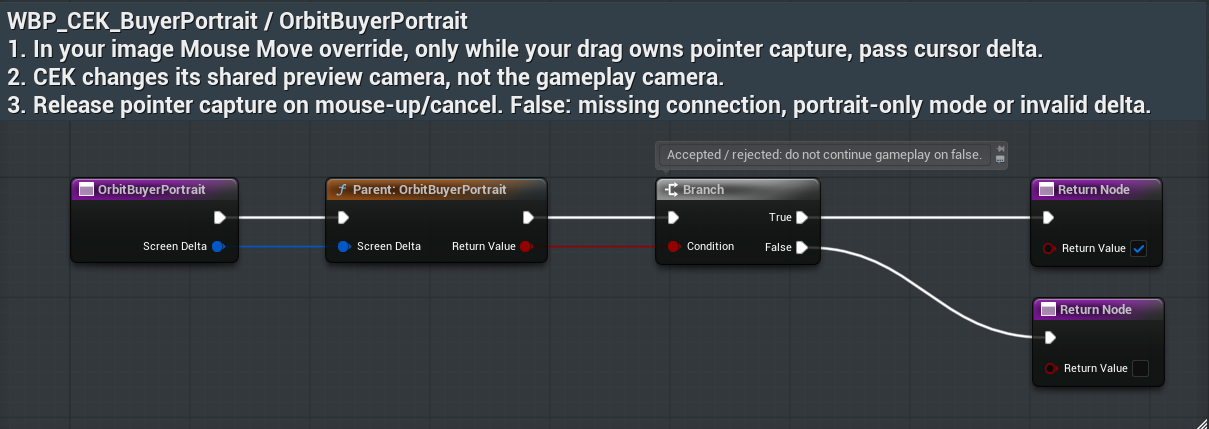
Click to enlarge. The full-resolution Director capture is preserved.
- Call with cursor Screen Delta while your full image owns pointer capture.
- Default left drag already performs this; keep the boolean rejection path in your own input.
- Portrait-only/disconnected/non-finite input rejects. Release on up/capture loss.
Compile, save and check: Only the shared full-preview camera changes.
Pan the isolated preview
WBP_CEK_BuyerPortrait / PanBuyerPortrait
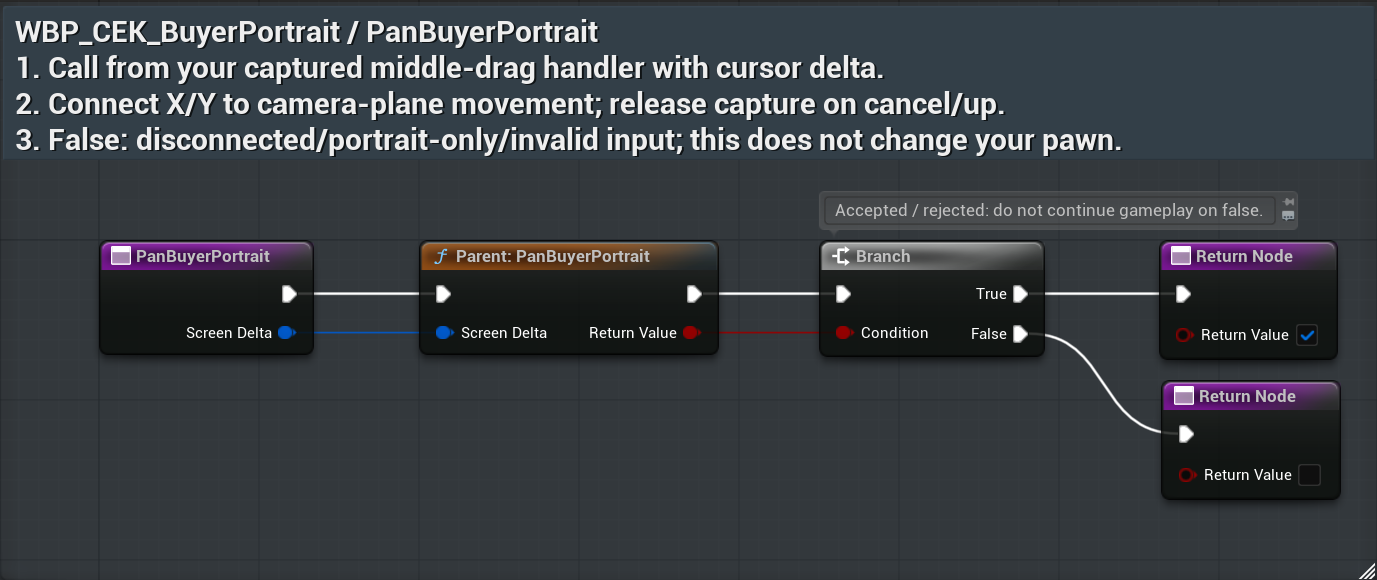
Click to enlarge. The full-resolution Director capture is preserved.
- Call with cursor Screen Delta during middle drag.
- The default widget captures its own pointer; custom UI must handle capture and cancellation.
- Release on mouse-up, capture loss, removal and disconnect.
Compile, save and check: The preview camera moves in its plane; original pawn/hand transform is unchanged.
Restore configured framing
WBP_CEK_BuyerPortrait / ResetBuyerPortrait
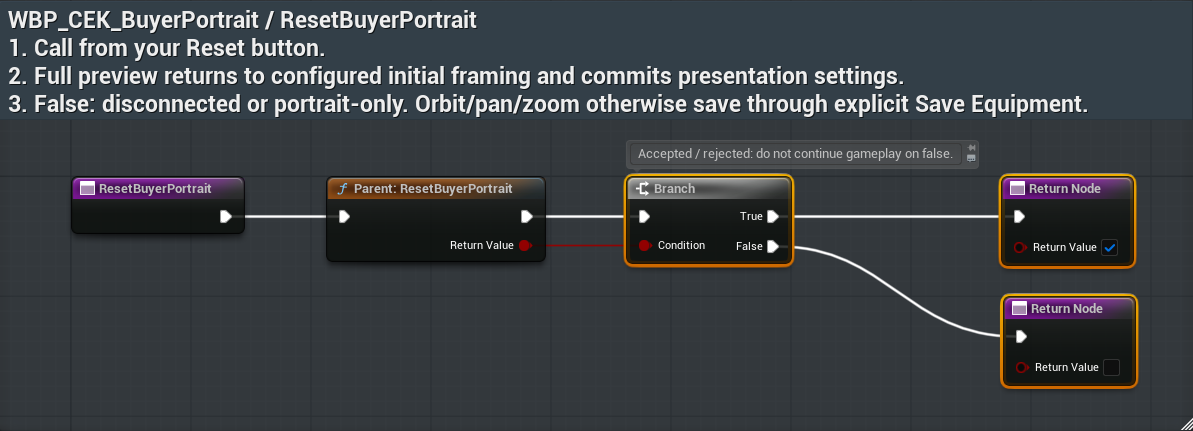
Click to enlarge. The full-resolution Director capture is preserved.
- Call from your Reset button.
- Branch on bool: false is disconnected or portrait-only.
- Reset returns to configured initial framing and commits presentation settings. Explicit save persists other camera edits.
Compile, save and check: Full widget and native sheet share reset/camera settings.
Remove only this portrait consumer
WBP_CEK_BuyerPortrait / DisconnectPortrait
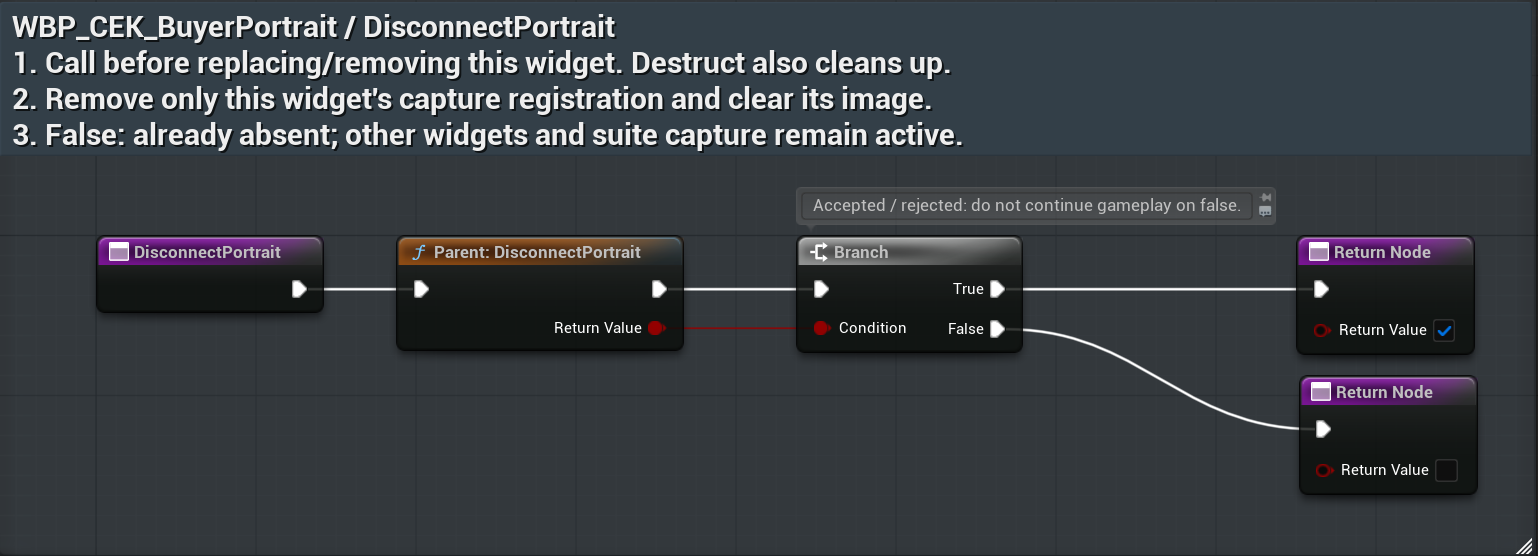
Click to enlarge. The full-resolution Director capture is preserved.
- Call Disconnect Portrait before replacing/removing the widget. Widget Destruct also ensures native cleanup.
- The exact consumer and image are cleared. Pointer capture is released only when this widget owns it.
- Other buyer widgets, CEK’s menu/launcher and the native suite portrait flag remain independent. True means removed; false means already absent.
Compile, save and check: A dead weak owner cannot keep capture active. Cleanup does not disable another widget’s preview.
Blueprints: Drop equipped gear into your own pickup representation
Folder: Show Plugin Content → CharacterEquipmentKit → CharacterEquipmentKit → Examples
Choose a pickup and world owner
BP_CEK_BuyerDrop / ClassDefaults
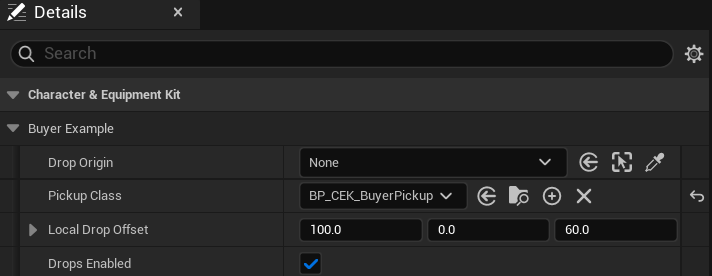
Click to enlarge. The full-resolution Director capture is preserved.
- Construct BP_CEK_BuyerDrop from your retained gameplay owner. Keep it alive while connected.
- Choose Pickup Class (BP_CEK_BuyerPickup or your child), a valid runtime Drop Origin actor and Local Drop Offset. Configure Drops Enabled for your authority.
- Connect Buyer Equipment with the local CEK component and branch on its return and Failure. Another owner/native delegate is preserved.
Compile, save and check: The sample supports CEK-owned equipment. Replace its transaction core when an external inventory/server owns equipment.
Request exactly one drop
BP_CEK_BuyerDrop / RequestBuyerDrop
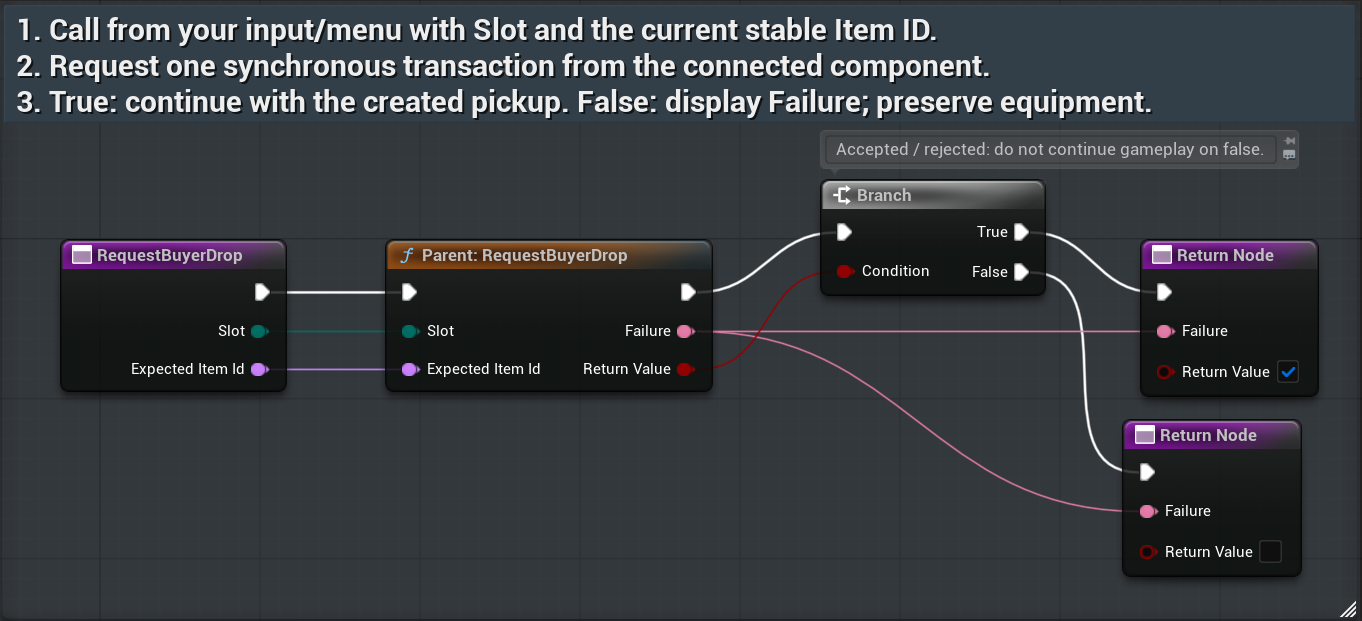
Click to enlarge. The full-resolution Director capture is preserved.
- Call from your own input/button. Get Equipped Slot supplies Slot and its current Item Id; pass that ID into Expected Item Id.
- Keep Return Value and Failure. False means disabled, disconnected, stale or refused; keep equipment unchanged.
- True means the synchronous sample created/initialized a pickup and cleared the matching slot. Save afterward; do not repeat spawn/drop after a save failure.
Compile, save and check: Request acceptance is not automatic inventory collection or replication. Last Committed Pickup exposes the initialized actor.
Commit or preserve the item
BP_CEK_BuyerDrop / CommitEquippedItemDrop
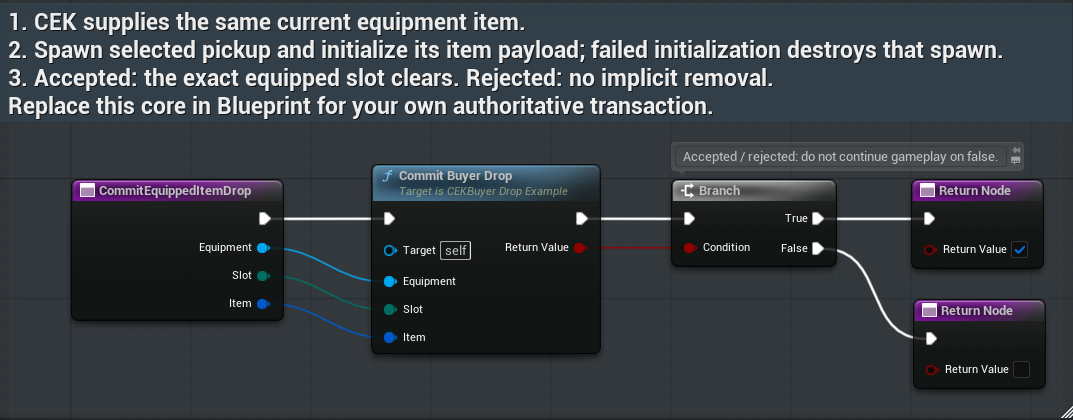
Click to enlarge. The full-resolution Director capture is preserved.
- The dispatcher supplies the current Equipment, Slot and Item. Keep those exact data wires.
- Commit Buyer Drop spawns the chosen compatible class, initializes its payload once, rechecks equipment and clears the exact slot after success.
- Return false on failure. Failed initialization destroys that spawn; failed display transfer rolls back it. Do not remove equipment in the readiness query.
Compile, save and check: Your replacement core must truthfully return success only after its transaction commits. CEK cannot undo unrelated dishonest provider mutations.
Register your exact drop provider
BP_CEK_BuyerDrop / ConnectBuyerEquipment
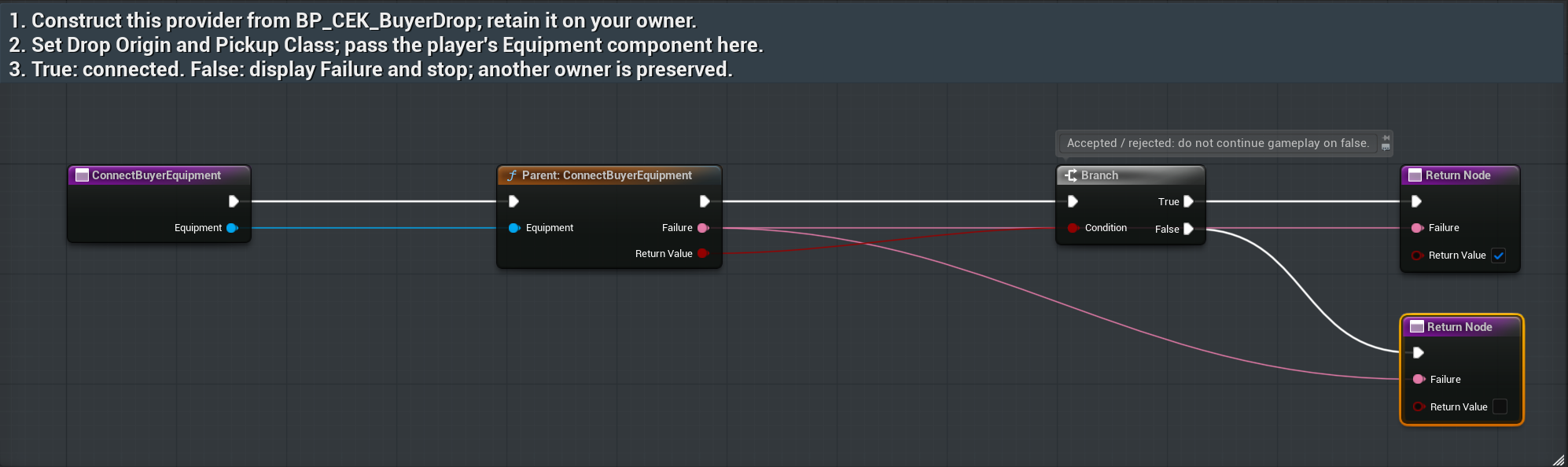
Click to enlarge. The full-resolution Director capture is preserved.
- Construct/retain this saved UObject example using a gameplay actor Outer.
- Supply Equipment; branch on bool and Failure.
- Keep Drop Origin valid at runtime and preserve another provider; wrong-owner disconnect must not clear it.
Compile, save and check: Only one exact authority binding owns drop dispatch.
Check drop readiness without mutation
BP_CEK_BuyerDrop / CanDropEquippedItem
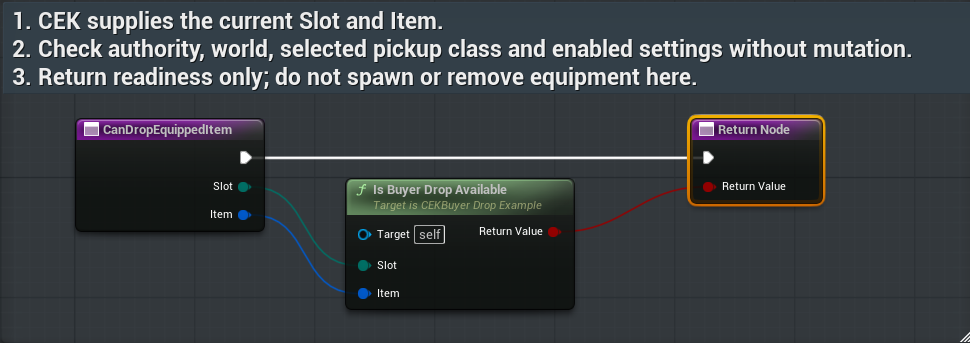
Click to enlarge. The full-resolution Director capture is preserved.
- Dispatcher supplies current Slot and Item.
- Check connected CEK-owned mode, valid world origin, allowed slot and enabled policy.
- Return false without spawning or clearing gear; commit belongs to the later operation.
Compile, save and check: Readiness is a pure predicate; failed queries cannot duplicate or remove inventory.
Blueprints: Initialize your pickup and finish the first test
Folder: Show Plugin Content → CharacterEquipmentKit → CharacterEquipmentKit → Examples
Retain one stable item payload
BP_CEK_BuyerPickup / InitializeBuyerPickup
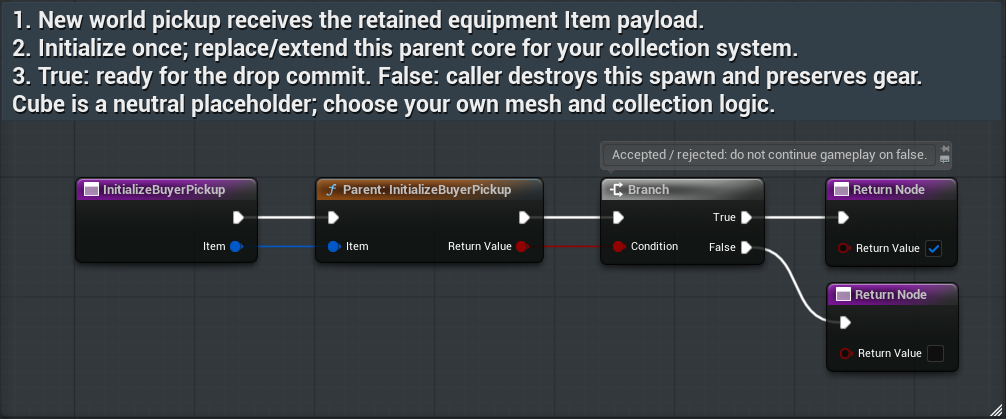
Click to enlarge. The full-resolution Director capture is preserved.
- The caller supplies Item after creating your pickup. Forward it to the parent or your own initialization exactly once.
- True means this actor is ready for the accepted drop; false makes the sample caller destroy it and preserve equipped gear.
- Change the pickup’s mesh/materials and add your collection interaction. Transfer Item Payload to your inventory only after acceptance, then destroy the representation.
Compile, save and check: The supplied neutral cube is a teaching representation. Collection, quantities, physics policy and multiplayer replication are your game’s work.
Cancel future drop requests
BP_CEK_BuyerDrop / DisconnectBuyerEquipment
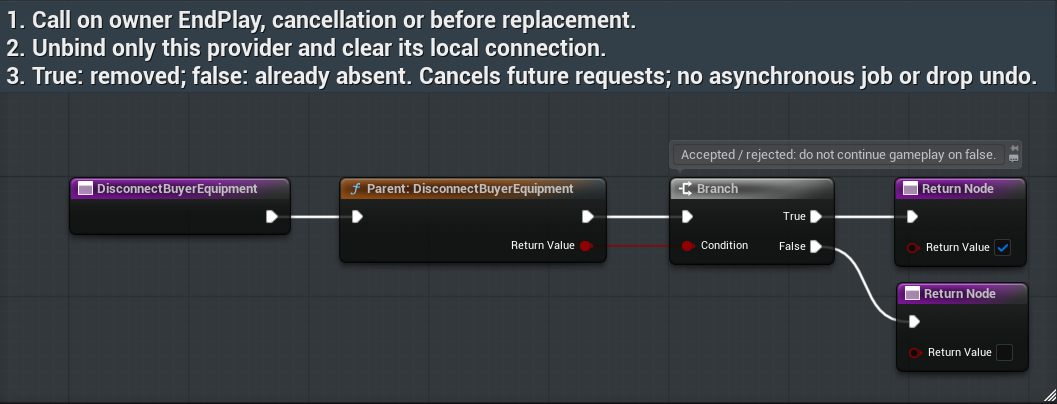
Click to enlarge. The full-resolution Director capture is preserved.
- Call this on your owner’s EndPlay, cancellation and before replacing the provider. Keep the bool return branch.
- It unbinds only this exact provider and clears Connected Equipment. False means it was already absent.
- Test disabled requests, stale IDs, rejected initialization, repeated payload initialization and reconnect. Successful drops preserve the stable ID and must not create a second unit.
Compile, save and check: Disconnect does not undo an accepted pickup or destroy a successfully transferred actor. Compile/Save your copies and test the actual packaged game.
Troubleshooting and integration checks
No sheet: confirm the plugin is enabled, the player is local and possessed, and your host has not suppressed the standalone launcher. If input is host-owned, open the sheet through your host action.
Blank portrait: connect the retained widget to the local equipment component. Check Pawn Ready and a non-null Preview Resource. A successful connection is not proof that the first capture frame is ready.
Equip rejected: check stable Item ID, allowed slot, required level, occupancy and connection. A forwarded result still needs your inventory/server decision.
Drop rejected: check Drop Origin, Pickup Class, enabled policy, current stable Item ID and equipment authority. Preserve gear on rejection; save failures do not authorize a second drop.
Editor appears stuck at 0%: another Unreal build can hold the shared Build.bat lock while startup waits to validate platforms. Check the active build before starting another editor or deleting lock files.
Before shipping your integration, check accepted and rejected actions, save/reload, reconnect, possession changes, portrait removal, input restoration and your target packaged renderer. Screenshots illustrate hookups; they do not establish runtime acceptance.
Optional native integration and support
The same ownership rules apply to C++ callers. See NativeBuyerExample/README.md, CEKBuyerNativeLifecycle.h and CEKBuyerNativeLifecycle.cpp alongside this guide for the retained native example.
Use the public plugin API, retain your component/provider references, bind only your listeners, and remove only your own connection during cleanup. Do not use broad delegate unbinding that removes other consumers.
For support, include your engine version, plugin version, the failing action, expected behavior and relevant log excerpt. Contact support.blackironspine@proton.me.